
Introduction#
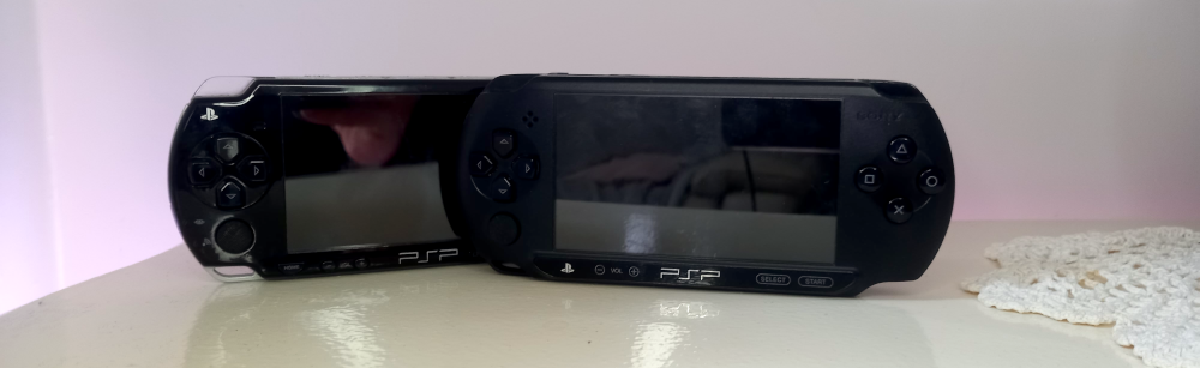
The PSP is arguably one of the best-looking handheld consoles ever made. Designed by a team led by Shinichi Ogasawara, it was never intended to be just a toy. Sony wanted to create a portable multimedia device, and I think they absolutely nailed it at the time.
But how does it hold up in 2026, especially now that physical media has all but disappeared and the UMD drives are starting to fail?
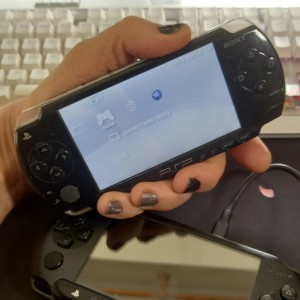
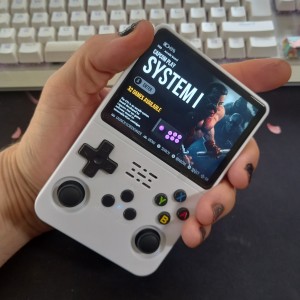
It is also worth remembering that comparing the PSP directly with modern retro handhelds, such as the R36S or Raspberry Pi-based machines, isn’t entirely fair. There is a 20-year technology gap between them.
You know the ones I mean: those little machines that look like a Game Boy and arrive from China with thousands of games advertised as included.
Despite being comparable in size to the PSP, the R36S is considerably more powerful in raw hardware terms. However, emulating the PSP’s unique architecture requires additional processing overhead, so not all of that extra performance translates directly into a better PSP gaming experience.
That said, the PSP has something that many modern handhelds struggle with: ergonomics. Its shape and controls are much more comfortable for adult hands, and you can play for a decent amount of time without your hands cramping up.
Personally, I’d get both. They each have their own strengths, and both can do considerably more than just play games.
I’ve included a link to the R36S below.
Softmodding?#
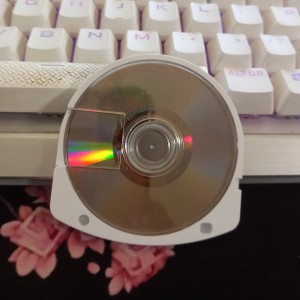
Softmodding removes the need to use the UMD drive for games, but it doesn’t remove or replace the drive itself.
If you’re lucky enough to have a PSP with a working UMD drive and a collection of games or movies, you can still use them just as before.
What softmodding adds is the ability to run ISO game images from a modern SD card, using a Memory Stick Duo to SD adapter.
This is a brilliant way to breathe new life into an ageing console, particularly when the original drives and discs are becoming increasingly difficult to find in good condition.
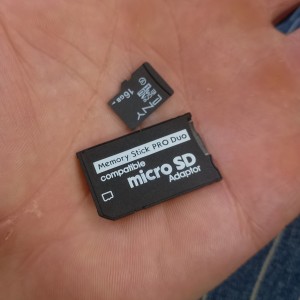
For me, this is a game changer. You can take your legally obtained games with you wherever you go, without carrying around those tiny UMD discs that are all too easy to lose.
And, of course, you can run homebrew software, including fun projects such as the vibe-coded home assistant app.
The UMD format isn’t entirely dead, either. There are still some cheap movies floating around if you fancy building a collection of this rather unusual piece of physical media.
Follow the link below to see what’s available in the UK.
Softmodding Guide#
You can either follow the guide below or listen to me ramble on in the video.
What you’ll need#
You will need:
- A PSP. I’m using an E1003 and a 2003, but the process described here is intended for compatible PSP models.
- A Memory Stick Duo to SD adapter, as discussed above.
- A microSD card.
- The FasterARK softmod package.
Before starting, make sure your PSP is running the latest official firmware supported by your model.
You can find the firmware update instructions here:
PSP: Updating Your Firmware (OFW) on ConsoleMods
The process is fairly straightforward. Download the appropriate firmware update, place it in the required folder on your memory card, and run the update from the PSP itself.
Once that’s done, download FasterARK from the link below.
Navigate to the Releases section on the right-hand side of the GitHub page and download the appropriate release.
Installing FasterARK#
Insert your microSD card into the Memory Stick Duo adapter and put it into your PSP.
Navigate to the Memory Stick format option in the PSP’s system settings and format the card.
Once formatted, connect your PSP to your PC using USB mode. Alternatively, for faster transfers, remove the card and use a USB 3 card reader.
Copy the contents of the PSP folder from the FasterARK package to the root directory of your memory card. The PSP folder should sit directly on the card, not inside another folder.
Safely eject the card from your computer.
In the root directory of the memory card, create a folder called
ISO(in capital letters). This is where your game ISO files will go.Put the memory card back into the PSP and switch it on.
Navigate to the Game section of the XMB (the PSP’s main menu), then open the Memory Stick directory.
Launch the PSP FasterARK application.
You should now be able to see and launch compatible games stored in your ISO folder.
Just remember that, with the temporary setup I’m using, you need to run the hack again each time you reboot the console.
There are ways to make the custom firmware permanent, but I decided against doing that for now. I’d rather keep things reversible, just in case something else comes along in the future.
Copying Your UMD Games on Linux#
One of the most useful features of custom firmware is the ability to back up your own UMD games to ISO files.
This allows you to preserve your games and play them directly from your memory card, without relying on an ageing UMD drive.
I’m using Kubuntu for this guide, but the process is much the same on most Linux distributions, including Ubuntu, Debian and Linux Mint. You may find that the way removable devices are displayed differs slightly depending on your desktop environment.
Backing up your UMD#
On your PSP, navigate to Extras → Custom Firmware Settings and change the USB device setting to UMD.
Connect your PSP to your Linux computer using a USB cable.
Enable USB mode on the PSP. Your Linux desktop should detect the device. Depending on your distribution and desktop environment, it may appear in your file manager as a removable drive.
Open the mounted device and copy the ISO image to a folder on your computer where you keep your game backups. In my case, I’m using Kubuntu’s file manager, Dolphin.
Once the transfer is complete, safely unmount the device. You can usually do this from your file manager by clicking the eject or unmount icon next to the device. Alternatively, use the
umountcommand in a terminal, replacing the example device path with the actual mount point on your system.Disconnect the PSP and return to Extras → Custom Firmware Settings. Change the USB device setting back to Memory Stick.
You can rename the ISO file to whatever you like. The PSP doesn’t care what the filename is, as long as it retains the .iso file extension.
Copying the new game to your memory card#
Connect the PSP to your computer again and enable USB mode.
Open your file manager and access the mounted memory card.
Copy your backed-up ISO file into the
ISOfolder in the root directory of the memory card. If the folder doesn’t exist, create it.Once the transfer has finished, safely unmount the memory card and disconnect the PSP.
On the PSP, navigate to Game → Memory Stick and launch your game.
That’s it! You can now play your backed-up game directly from the memory card, without having to use the original UMD drive.
The initial backup takes around ten minutes in my experience, although this will depend on the game and your hardware.
Just remember to safely unmount removable storage before disconnecting it. This helps prevent incomplete transfers and corrupted files.
I hope this guide helps you get many more years of fun out of your PSP. These little machines deserve to be kept alive, and there’s something rather satisfying about taking old technology and making it useful again.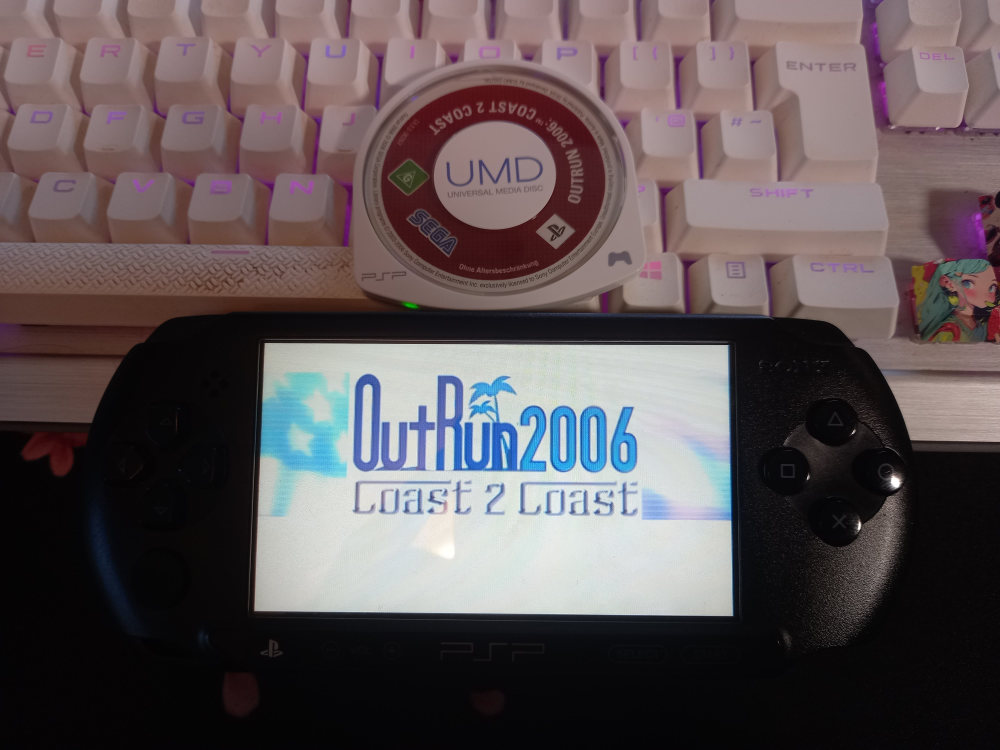
If you've enjoyed this article and fancy helping keep the servers humming and the tools running, you can find things on the Robin's Lab wishlist . No obligation — reading, sharing, enjoying the articles and disagreeing with me are all completely free. I won't even send you an invoice.