
Intro#
It’s no secret that I love digital design and the seemingly magical digital pens that make the perfect companion to enabled devices really open up what you can do with these now fairly cheap products. I remember when they reached prominence in the 2010’s. Having the ability to draw directly on the screen in high detail changed how design companies worked and revolutionised workflows. I was particularly impressed on how you could draw with a light colour like yellow over a dark background and create a seamless blend the two tones together without any chemically induced mess interfering with the gradient.
Since then I wanted a device that I could take out with me and draw, but they were prohibitively expensive until now. I say now because 15 years later some devices are almost classed as E-waste and are completely unsupported by Microsoft, or in this case we can call them Micro-shaft, because there is nothing wrong with the machine or the excellent pens, just the operating system.
Specifications#
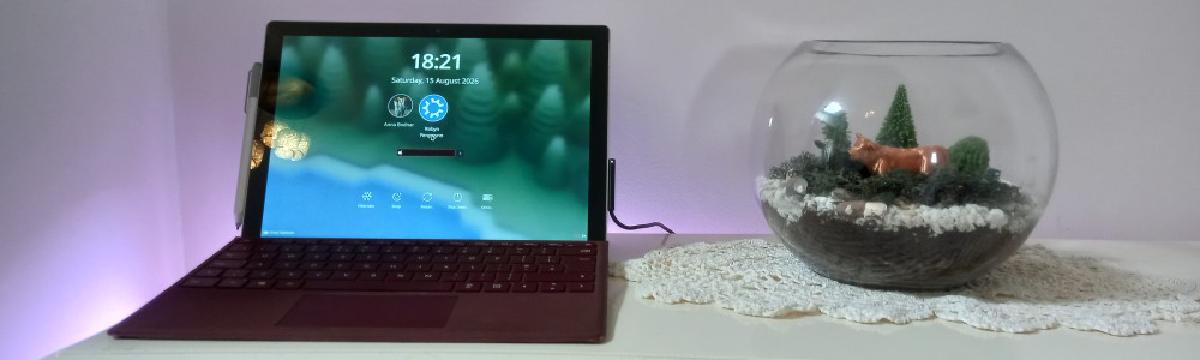
The Microsoft Surface Pro 1807 is the model number for the Surface Pro 5th Gen with LTE Advanced, released on 1 December 2017.
This specific variant distinguishes itself from the standard Wi-Fi model (Model 1796) by including a 4G LTE Cat 9 modem and a physical Nano SIM tray.
- Processor: Intel Core i5-7300U (7th Gen).
- Display: 12.3-inch PixelSense Display with a resolution of 2736 x 1824 (267 PPI) and a 3:2 aspect ratio.
- Cellular Connectivity: 4G LTE Advanced with Nano SIM and eSIM support.
- Ports: 1 x Full-size USB 3.0, microSDXC card reader, Mini DisplayPort, and Surface Connect port.
- Battery Life: Up to 12.5 hours of local video playback over 4G LTE.
- Weight: Approximately 812g
Prerequisites#
The Linux Surface Project#
Luckily we can do something about Microsoft abandoning its baby. It will come as no surprise to anyone that I am going to say we can install Linux to ‘fix’ the broken operating system. The problem it cant be done the standard way. Microsoft invented new hardware and as such it needs a custom compiled kernel to get the pen input working properly. As always, listen to me ramble on or follow the link to the official repository.
https://github.com/linux-surface/linux-surface
Acessories#
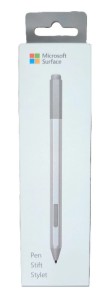
The Microsoft Surface Pen Stylus 1776 is a 4th-generation active digital stylus released by Microsoft in 2017, It’s the reason why I put the Linux surface kernel on the device in the first place.
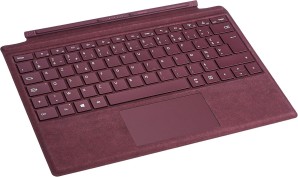
The ‘magnetic keyboard cover’. That’s the device that no one calls the “Surface Pro Signature Type Cover”. I chose the Burgundy Alcantara version and - you guessed it I found it on ebay.
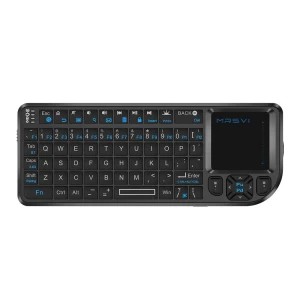
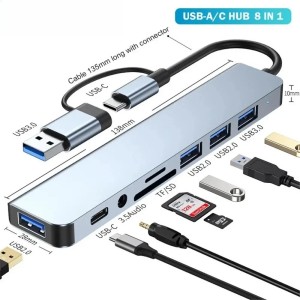
Because the device has its own propitiatory keyboard interface you will need to connect a mouse and keyboard to the one USB port. This is easily done by using a USB HUB.
You will also need a USB thumb drive. If you don’t have one don’t skimp our on a cheap one. many Linux projects use these and as such should be a part of any modern Linux toolkit. I reccomend a 32gb drive. That way toy can partition the drive for storage too, or even have a live image on it.
Installation Procedure#
Stage 1#
1 First of all put the image onto a USB drive.
Boot into the Surface UEFI:
- Shut down your Surface.
- Press and hold the Volume Up button, then press and release the Power button. Release Volume Up when the Surface/Microsoft logo appears
Adjust UEFI Settings:
- Go to Security and set Secure Boot to “Microsoft & 3rd party CA” (Alternatively, disable it entirely if you face issues, though the custom kernel supports it).
- Go to Boot configuration and drag USB Storage to the top of the list.
Install Linux: Save changes, exit UEFI, and boot into your USB installer. Follow the on-screen steps to install your chosen distribution entirely, I highly recommend a Ubuntu family distro. Once done, reboot the device and remove the USB drive
Stage 2#
- Add the repository GPG key
wget -qO - https://raw.githubusercontent.com/linux-surface/linux-surface/master/pkg/keys/surface.asc \

| gpg --dearmor | sudo tee /etc/apt/trusted.gpg.d/linux-surface.gpg > /dev/null- Add the repository
echo "deb [signed-by=/etc/apt/trusted.gpg.d/linux-surface.gpg] https://surfacelinux.com release main" \
| sudo tee /etc/apt/sources.list.d/linux-surface.list- Update packages and install the kernel + touch daemon
sudo apt update
sudo apt install linux-image-surface linux-headers-surface iptsd libwacom-surface secureboot-surface- Update your bootloader
sudo update-grubDrawing Experience#
Because the screen uses a capacitive touch screen if your palm touches the screen you will move the pointer no matter what settings you enable. So I suggest buying a inexpensive glove, this is the main downside of these older devices. Once the bluetooth pen is connected you generally have a good experience unless there is a background task running, for example auto-saving a large document. This sometimes lags the screen causing a smear across your drawing. But you can just undo that with a on screen button.
Once you glove-up, I find that Krita works brilliantly with the newly installed operating system, with one caveat. Don’t download the code from the Apt repository or the Snap store though, get the image from Krita themselves. you can always find the latest packages that way.
sudo apt remove kritasudo snap remove --purge kritaDownload from;Krita’s Website
Another package that I always install is Inkscape. Inkscape is a great piece of software and Adobe made a little known alternative that hardly anyone uses legally called Illustrator, but I wouldn’t use it, it costs a fortune for a program who’s main feature is to draw vector shapes.
sudo apt remove inkscapesudo snap remove --purge inkscapeDownload from;Inkscape’s Website
Conclusion#
Would I do this again? Yes without a doubt. Considering this cost me under £150 and a new surface pro costs upwards of £2000, I bagged a bargain. Even though sometimes the UI can bug out when opening the machine, I have the ability to draw digitally anywhere in the world now. That feels like freedom to me. That sense of freedom is exactly why the free software foundation was created.
If you've enjoyed this article and fancy helping keep the servers humming and the tools running, you can find things on the Robin's Lab wishlist . No obligation — reading, sharing, enjoying the articles and disagreeing with me are all completely free. I won't even send you an invoice.